

SQURE.IO Resources
Guides and answers to help you get started with SQURE.IO. Most new customers only need the Quick start. Further down you will find the frequently asked questions.
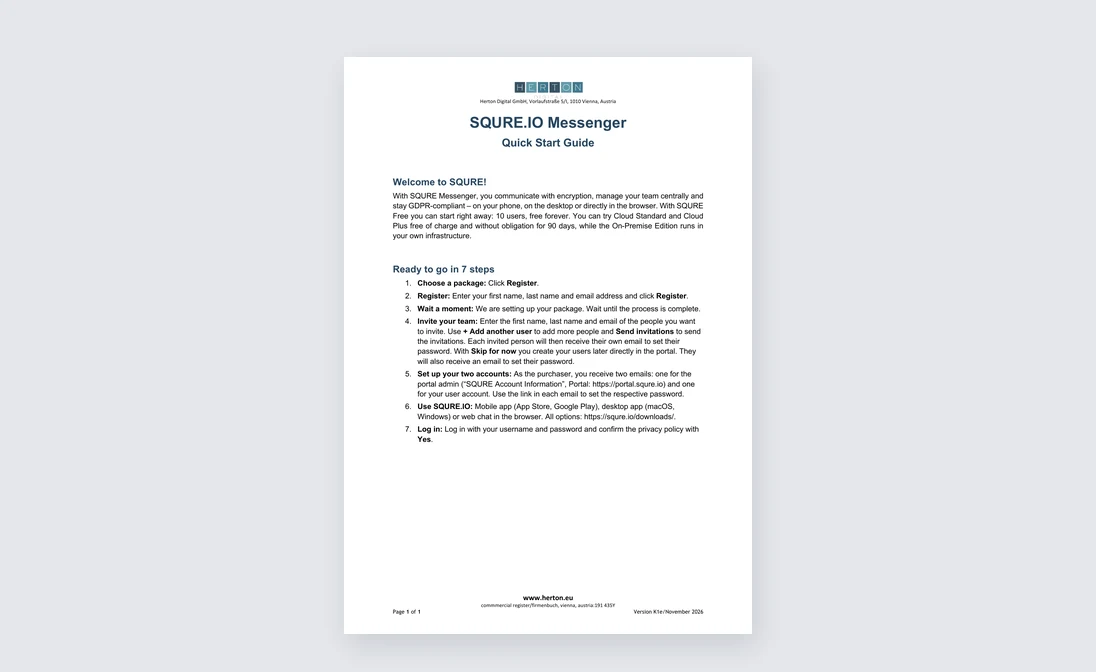
Quick start
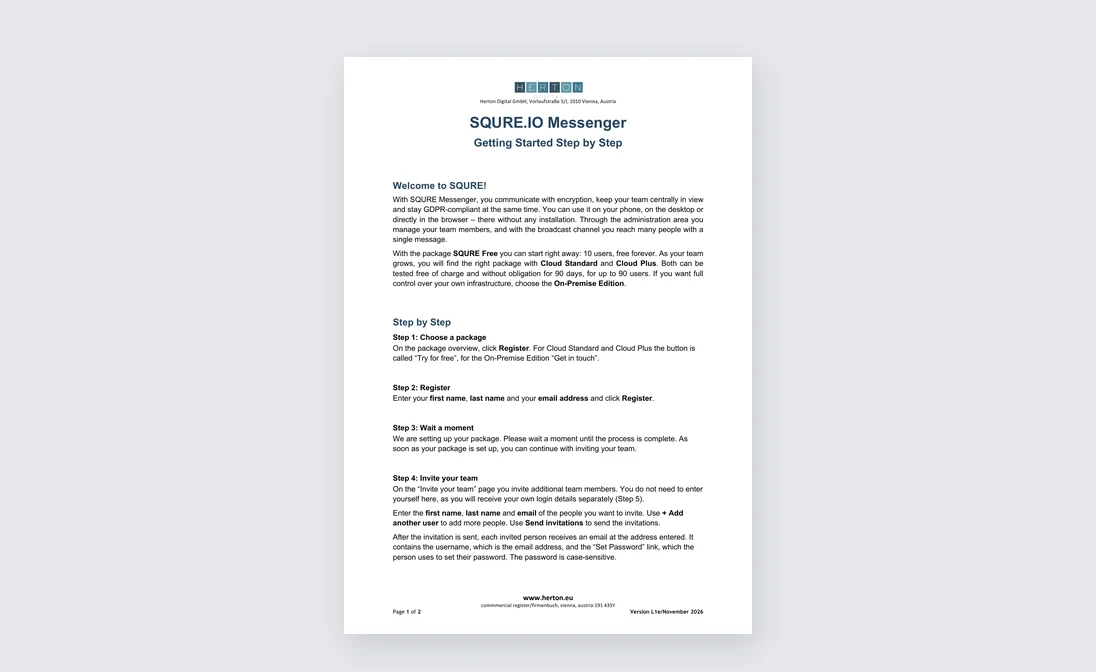
Detailed guide
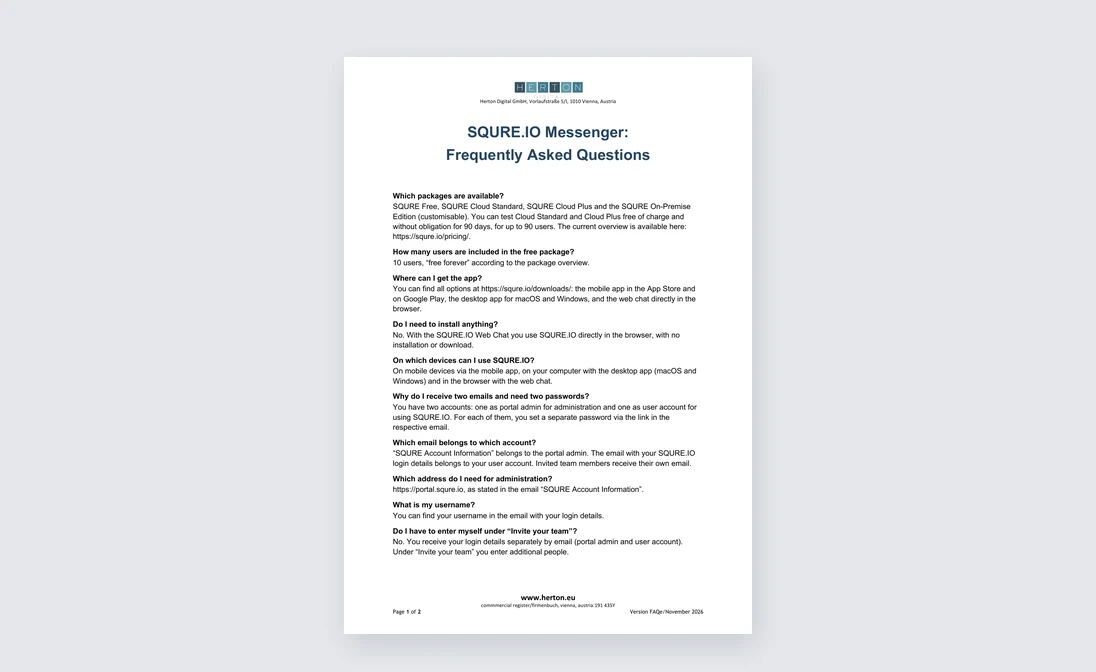
Frequently asked questions
Frequently asked questions
SQURE Free, SQURE Cloud Standard, SQURE Cloud Plus and the SQURE On-Premise Edition (customisable). You can test Cloud Standard and Cloud Plus free of charge and without obligation for 90 days, for up to 90 users. The current overview is available here: https://squre.io/pricing/.
10 users, “free forever” according to the package overview.
You can find all options at https://squre.io/downloads/: the mobile app in the App Store and on Google Play, the desktop app for macOS and Windows, and the web chat directly in the browser.
No. With the SQURE.IO Web Chat you use SQURE.IO directly in the browser, with no installation or download.
On mobile devices via the mobile app, on your computer with the desktop app (macOS and Windows) and in the browser with the web chat.
You have two accounts: one as portal admin for administration and one as user account for using SQURE.IO. For each of them, you set a separate password via the link in the respective email.
“SQURE Account Information” belongs to the portal admin. The email with your SQURE.IO login details belongs to your user account. Invited team members receive their own email.
https://portal.squre.io, as stated in the email “SQURE Account Information”.
You can find your username in the email with your login details.
No. You receive your login details separately by email (portal admin and user account). Under “Invite your team” you enter additional people.
Yes. In the “Invite your team” step, choose Skip for now. You then create your users directly in the portal. There, too, they receive an email to set their password.
An email with their username and the “Set Password” link, which they use to set their password.
After you have clicked Send invitations. If you chose Skip for now, your users receive the email as soon as you create them in the portal.
First check your spam folder and whether the correct email address was entered during registration or when inviting. You can only find out your username through this first email. Without it, you cannot request a new password. If the email still does not arrive, please contact support.
On the login screen, click Forgot password?. You need your username for this, which you know from the email with your login details. With it, you can request a password change.
Check upper and lower case. If you no longer remember it, Forgot password? helps.
Click Click here to log in, or open SQURE.IO via the app or the web chat and log in with your username and password.